Submitted by The Fan Club on

This guide is based on the Ubuntu Wiki - Multitouch documentation and various community forum posts.
This guide is intended as a relatively easy step by step mostly graphical (GUI) guide to:
- Calibrate a touchscreen panel or monitor on Ubuntu 11.04 or later.
Requirements:
- Ubuntu 11.04 or later installed machine.
- Touchscreen panel or monitor. In this case a LG Flatron T1710 Monitor.
1. Install uTouch - Ubuntu Multitouch framework.
- uTouch is installed by default in Ubuntu 11.04, if not installed on your system add it from the Software Center or with the following command.
- Open the Terminal Window and enter :
sudo apt-get install utouch2. Install xinput calibrator.
- xinput calibrator is a easy GUI Touchscreen Calibration program for X.Org. Install it from the Ubuntu Software Center or using the command below.
- Open the Terminal Window and enter :
sudo apt-get install xinput-calibrator3. Use xinput calibrator to determine the x and y co-ordinates of your touchscreen.
- Now we use xinput calibrator to measure the xMin, xMax, yMin and yMax values of the touchscreen.
- Launch xinput calibrator (Called Calibrate Touchscreen in the ubuntu program menus)
- Use a stylus to tap the four registration point indicated in red on screen by the program.
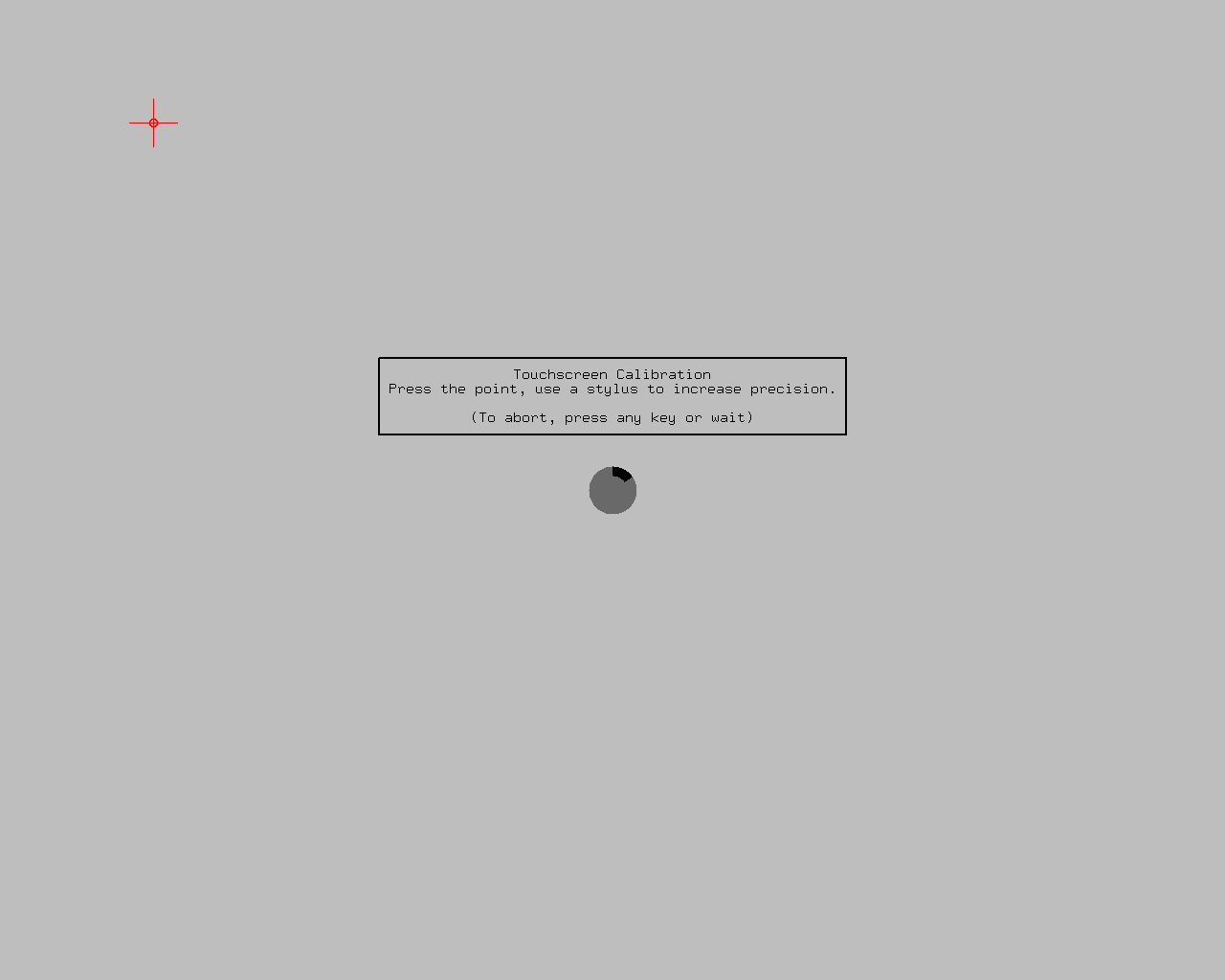
4. Note the results from xinput calibrator.
- Make a note of the calibration data supplied by xinput calibrator, but ignore the instruction supplied regarding making the calibration permanent.
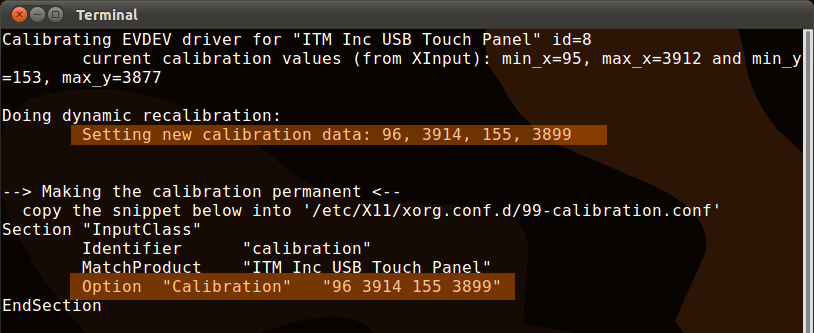
5. Update X11 evdev configuration.
- Once you have determined the x and y co-ordinate information, you need to add it to the X11 configuration files, for the evdev driver, the default installed driver used for handling Touchscreen input events.
- The X11 configuration for the Touchscreen can be found in the /usr/share/X11/xorg.conf.d/10-evdev.conf file.
- Edit the file, find the Touchscreen InputClass and add: Option "Calibration" "xMin xMax yMin yMax"
- Replace the xMin, xMax, yMin and yMax values with your values obtained in step 4.
- Open the Terminal Window and enter :
sudo gedit /usr/share/X11/xorg.conf.d/10-evdev.conf- Then add calibration option settings obtained in Step 5 to the touchscreen InputClass section:
Option "Calibration" "96 3914 155 3899"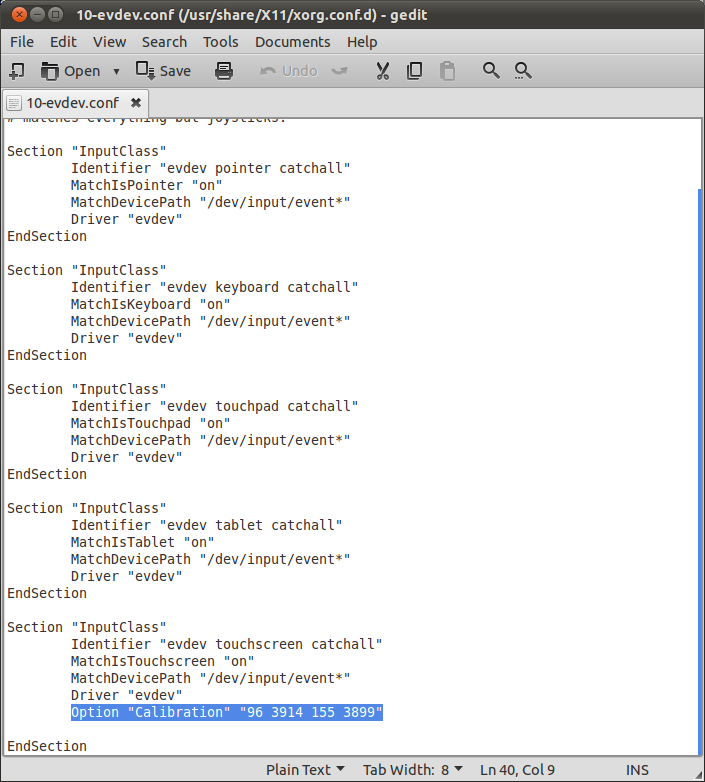
6. Logout to Restart X11.
- Finally to enable your calibartion settings log out and back in again to restart X11.









Comments
Just a little thing... i will
Submitted by z666zz666z (not verified) on
Maybe you should use the
Submitted by Stylised Response (not verified) on
This tool seems to be
Submitted by Bart Houkes (not verified) on
Did you add the option line
Submitted by The Fan Club on
Thank you
Submitted by gerhard (not verified) on
it wont let me save the 10
Submitted by Anonymous (not verified) on
Make sure you use sudo. Then
Submitted by The Fan Club on
Hello,
Submitted by Lelfic (not verified) on
Hello
Submitted by The Fan Club on