
This guide is intended as a relatively easy step by step guide to:
- Create a auto start bash script to start the mobile broadband connection at boot time as a startup service without needing to log in as a user.
- * Update: Added version 2 of the script that will also auto re-connect the mobile broadband connection if the connection is dropped, disconnected or lost for some reason.
Requirements:
- Ubuntu 12.04 LTS machine with a USB GSM 3G Modem
1. Setup a new Mobile Broadband Connection and connect.
- After you have set up a new Mobile Broadband Connection it will appear in the network connections (click on taskbar network icon).
- In this case our new connection name is : 8ta
- Connection 'name' should contain only alpha-numerical characters and no spaces to avoid problems.
- Make sure the "Enable Mobile Broadband" is activated. (see below)
- Connect to the internet with your Mobile Broadband connection by clicking on the connection name. In this case 8ta

2. Create a Network Manager CLi startup script for your connection.
- Open the Terminal Window and enter :
sudo gedit /etc/init.d/mobile-broadband-connect- Add the following into the startup script file and save:
- Note: Replace the YourMobileBroadbandConnectionNameHere with the name of your connection. In this case our service provider is: 8ta
- Note: If you want the script to also auto re-connect the connection if lost rather use version 2.
- Note: If you do not see a codeblock right below this text or see a small empty box before step 3 - please reload this page.
# Mobile Broadband Startup Service script v0.1 alpha by The Fan Club - April 2012
# acts as startup service script for nmcli to fire up Mobile Broadband Connections
# NOTE: Use the name of the Mobile Connection in the Network Manager as the 'id'
# USAGE: start|stop|status
#
### BEGIN INIT INFO
# Provides: mobile-broadband-connect
# Required-Start: $remote_fs $syslog
# Required-Stop: $remote_fs $syslog
# Should-Start: $network
# Should-Stop: $network
# Default-Start: 3 4 5
# Default-Stop: 0 1 6
# Short-Description: Autoconnect 3G GSM
### END INIT INFO
NAME="mobile-broadband-connect"
DESC="Autoconnect 3G/4G GSM USB modem at startup"
test -x $DAEMON || exit 0
case "$1" in
start)
echo "Starting Mobile Broadband Connection."
while true; do
# testing...
LC_ALL=C nmcli -t -f TYPE,STATE dev | grep -q "^gsm:disconnected$"
if [ $? -eq 0 ]; then
break
else
# no GSM modem detected yet, sleeping for a second
sleep 1
fi
done
# Once GSM modem detected, run the script
nmcli -t con up id YourMobileBroadbandConnectionNameHere
;;
stop)
echo "Stopping Mobile Broadband Connection."
nmcli -t con down id YourMobileBroadbandConnectionNameHere
nmcli -t nm wwan off
;;
status)
# Check to see if the process is running with nmcli
nmcli -p dev
;;
*)
echo "Mobile Broadband Startup Service"
echo $"Usage: $0 {start|stop|status}"
exit 1
esac
exit 0
3. Change the startup script file permissions.
- By default a new file is not allowed to be executed - so we need to modify the permissions to allow us to run the script at startup..
- Open the Terminal Window and enter :
sudo chmod +x /etc/init.d/mobile-broadband-connect4. Update system startup defaults to include your new script as a service.
- To update the startup services, open the Terminal Window and enter :
sudo update-rc.d mobile-broadband-connect defaults- The script is registered as a system startup service so you can start, stop, or check the status of the script with :
sudo service mobile-broadband-connect start
sudo service mobile-broadband-connect stop
sudo service mobile-broadband-connect status5. Reboot to complete installation and auto connect.
- Reboot your system to complete the installation.
- After reboot it takes up to 60 seconds before the USB device is active.
- When active - The Mobile Broadband Connection will be activated and auto connected.
6. Troubleshooting.
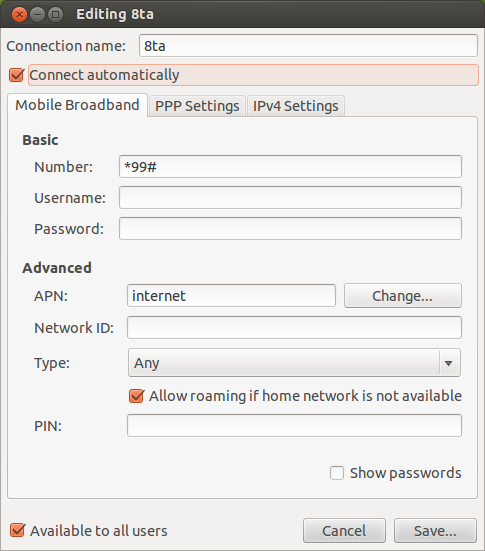
- If it does not connect on startup the most likely problem is that the connection is not available to all users at startup.
- Click on "Edit Connections..." in the Network Connections Manager dialog window, select Mobile Broadband, select your connection, and click on "Edit".
- Make sure that the "Available to all users" is selected and click on Save
* Version 2: How to Auto Re-Connect the Mobile Broadband Connection.
- The script in step 2 is only to establish a connection once the GSM modem becomes available on the system, usually during boot, but can also be in the form of a USB modem that is plugged into the computer.
- If the connection is dropped for whatever reason the script does not automatically re-connect the modem.
- The script was updated in version 2 below to allow for this event. It will keep running in the backgroud and keep trying to establish a GSM connection if it finds the modem disconnected for some reason.
- Edit the script file created in step 2, by opening a terminal window and entering:
sudo gedit /etc/init.d/mobile-broadband-connect- Then replace the original code with the code below and save:
- Note: Replace the YourMobileBroadbandConnectionNameHere with the name of your connection. In this case our service provider is: 8ta
# CD Mobile Broadband Startup Service script v2.0 beta by CD May 2012
# acts as startup service script for nmcli to fire up Mobile Broadband Connections
# user the name of the Mobile Connection as defined in the Network Manager as the 'id'
# USAGE: start|stop|status
#
### BEGIN INIT INFO
# Provides: mobile-broadband-connect
# Required-Start: $remote_fs $syslog
# Required-Stop: $remote_fs $syslog
# Should-Start: $network
# Should-Stop: $network
# Default-Start: 3 4 5
# Default-Stop: 0 1 6
# Short-Description: Autoconnect 3G GSM
### END INIT INFO
NAME="mobile-broadband-connect"
DESC="Autoconnect 3G/4G GSM USB modem at startup"
test -x $DAEMON || exit 0
case "$1" in
start)
echo "[MBC] *** Starting Mobile Broadband Connection."
while true; do
# Waiting for GSM modem adaptor...
LC_ALL=C nmcli -t -f TYPE,STATE dev | grep -q "^gsm:disconnected$"
if [ $? -eq 0 ]; then
# now gsm detected, run the script
echo "[MBC] GSM Modem Detected - attempting auto connect"
nmcli -t con up id YourMobileBroadbandConnectionNameHere
echo "[MBC] GSM Modem connecting ....."
# we want the script to loop forever and
# check if the connection is down
# but we need to give it a chance to connect or
# the modem will attempt to connect in an endless loop so we
# give a 30 second break to make sure it is not connected
echo "[MBC] Hopefully connected now... sleeping for 30sec"
sleep 30
else
# GSM device not detected yet or GMS device already connected - sleep
echo "[MBC] MBC still running - sleeping for 10....."
sleep 10
fi
done
;;
stop)
echo "[MBC] Stopping Mobile Broadband Connection."
nmcli -t con down id YourMobileBroadbandConnectionNameHere
ps aux | grep "mobile-connection-connect-2.0.sh start" | grep -v grep | awk '{print $2}' | xargs kill -9
#nmcli -t nm wwan off
;;
status)
# Check network status with nmcli
nmcli -p dev
;;
*)
echo "[MBC] Mobile Broadband Startup Service"
echo $"Usage: $0 {start|stop|status}"
exit 1
esac
exit 0
Download:
| Attachment | Size |
|---|---|
 mobile-broadband-connect-0.1.tar.gz mobile-broadband-connect-0.1.tar.gz | 854 bytes |
| mobile-broadband-connect-2.1.tar.gz | 10 KB |









Comments
Thanks, those all work on my
Submitted by iwansyahp (not verified) on
Works for the startup issues,
Submitted by JdaK (not verified) on
AT last and you beauty!
Submitted by Ian Williams (not verified) on
The connect automatically
Submitted by The Fan Club on
i don't have gui network
Submitted by ahmed (not verified) on
Thanks a lot. Script works
Submitted by Ben (not verified) on
To stop just use - sudo
Submitted by The Fan Club on
Thank you! I use it on my
Submitted by Ambrose Chua (not verified) on
Its works great... Thanks..
Submitted by Chirag (not verified) on
thanks a ton for your work!
Submitted by sriram kannan (not verified) on
Gracias, funciona
Submitted by v116v (not verified) on
absolutely ninja
Submitted by Ruben (not verified) on
Thanks a lot
Submitted by Kamal (not verified) on
Thank You so much for this Info
Submitted by Arise (not verified) on
Thank You
Submitted by Banda Nizi (not verified) on
AWESOME!!!!!
Submitted by Sashmo (not verified) on
works perfect
Submitted by oquidave (not verified) on